Structure and functions
 |
Note If you belong to a hotel group, please always check to see which hotel has been selected in the upper right corner of the Cloud Center. |
protel Messenger is accessed from the Messenger select menu. In the window which now opens you will find the Messenger’s various menu points in the field to the left.
The window first only shows the account information. The account information will give you information about your current short messages balance and the sender number for your messages. If you would like to send short messages, purchase a corresponding short messages balance from protel. Using the email service does not require any purchasing.
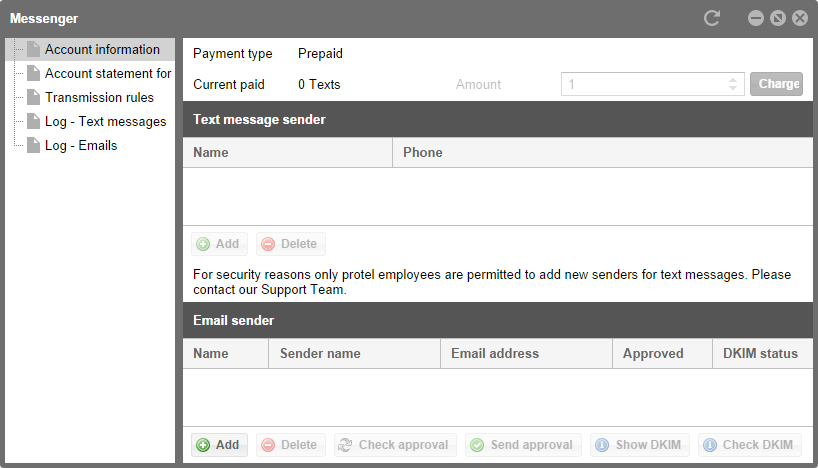
protel Cloud Center > Messenger > Messenger > Account information
Creating a sender
Creating a sender for short messages
A sender for short messages can only be created by protel. Please contact Support, to save a sender for a short message.
Create a sender name for your short messages. The sender name must not contain more than 11 alphanumeric characters or more than 16 numeric characters.
Email sender
For emails, you must manually create a sender address. Click the [Add] button and enter the sender into the new line from whom the emails are to be sent to your guest.
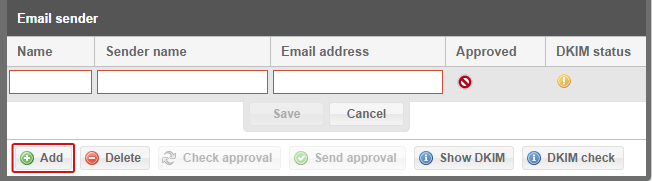
protel Cloud Center > Messenger > Messenger > Account information > E-Mail Sender
Enter the name, sender name and email address into the fields which open. The fields Name and Email address are marked in red because they are mandatory fields.
 |
Important! It's important to fill all fields at once. You cannot edit the sender afterwards because the entered data is transferred to SendGrid. After saving the sender you have only the option to delete but not to edit the sender. |
Click [Save] when you have finished entering everything.
In the next few minutes you will receive an email to the given address and an approval link for your adress. If you do not receive the mail, please check your junk mail folder. In the email, click the link to approve your email address. The website you access under this link shows that the email address has been successfully approved.
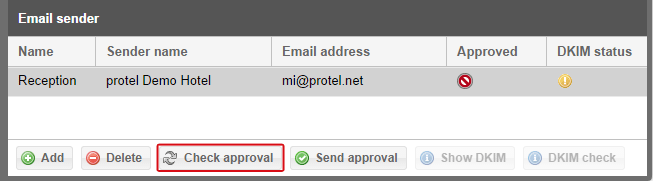
Switch back to Messenger and click the [Check approval] button.
The red symbol will turn into a green check mark if the procedure was successful.
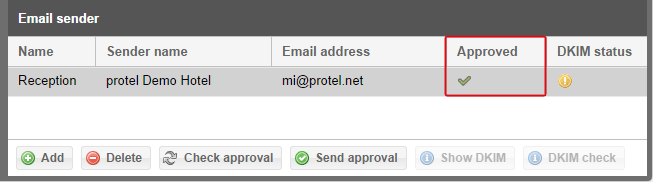
Should you have accidentally deleted an approval link, use the [Send approval] button to have them send you a new link.
The sender created here is the base for the functions of protel Messenger. Without this sender you will not be able to send any emails.
|
Note You can also delete the sender again, however only if there aren’t any transmission rules linked to this email address. First change the sender in the linked transmission rules before deleting the previous sender from Messenger. |