Example: Modifying the translation for a WBE label
To illustrate the localization function, let's modify a WBE button. For example, changing an entry in the calendar legend.
Modify legend
If you want it to show Fully booked instead of Not available, you can change the text in the localization.
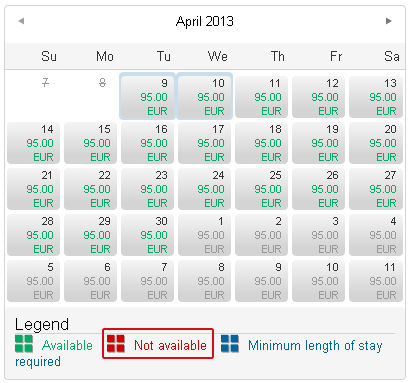
Example Calendar in the WBE 4.0
Open the Localization dialog in the Cloud Center as explained above and select the Wbe | WbeLocalization path on the left. Then, activate the check box include inherited translations and select English as the language:
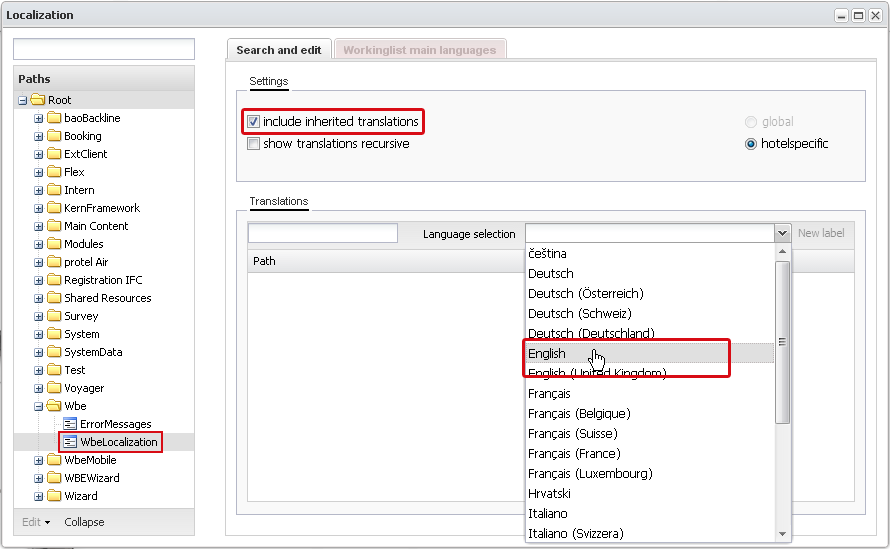
System | Localization | WbeLocalization | Language selection
Find label
The best way to find the label quickly is to use the search box. The label is Not available, so you should search for one of these words or part of them. This shortens the list considerably. The entry you wanted is then shown. The names of the technical labels (in this case: _NotAvailableLegend) help you identify the right label.
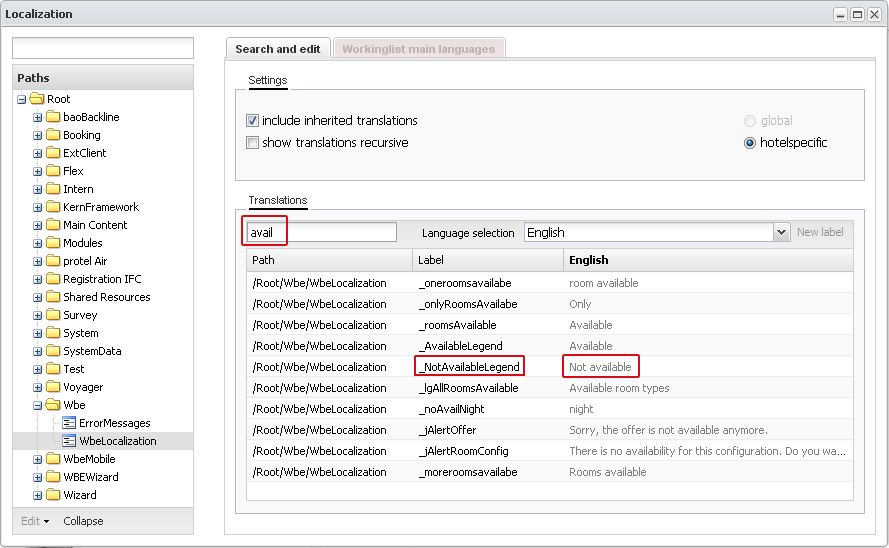
System | Localization | WbeLocalization | Search
Change label
Click the description in the English column and enter Fully booked, for example. The system saves your input when you leave the input field and click somewhere else in the dialog.
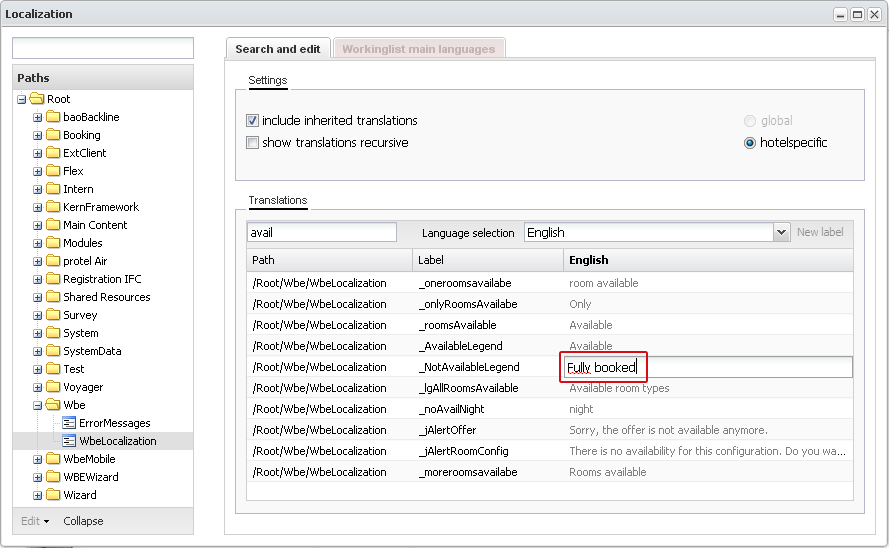
System | Localization | WbeLocalization | _NotAvailableLegend
Now go to the WBE to review your changes. Open the page with the room type selection and check the entry in the legend:
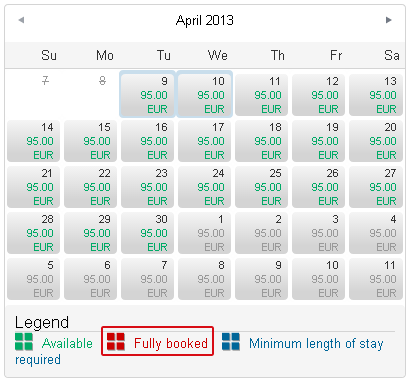
WBE: Modified legend
This is how you can use the Localization to modify labels in the WBE. If you use several languages on your website, please remember to make the changes in all languages.
 |
Do not forget! When you make changes to the WBE 4.0, please remember that the mobile version of the WBE has its own labels and translations. If you make changes to the WBE, you should also enter these changes in WBE Mobile so that the buttons on each display device have the same names. |