Log File
All messages you transmit using protel Messenger are saved with a status report. If you would like to check to see if a text message or an email has been successfully sent to a guest, you simply need to access the respective log.
Transmission status
In the column Status the transmission status of your message is displayed. These statuses can differ depending on the message type; therefore we have compiled a short legend.
| Status | Description | Delivery via |
Delivered |
Message has been successfully delivered to the receiving server. |
Text messages & Email |
Not delivered |
Text message or Email could not be delivered (e.g. because of a wrong number or the device was not connected to the mobile phone network within the past 48 hours). |
Text messages & Email |
Buffered |
Buffered from the network provider (if the device is switched off or if it has no reception). |
Only Text messages |
Transmitted |
The text message has been transmitted to the Short Message Service Centre (SMSC) |
Only Text messages |
Accepted |
The text message has been accepted and sent. |
Only Text messages |
PreCheckFailed |
The pre-check failed (this status can be triggered by a special character in an email address, for example). |
Text messages & Email |
ReadyToSend |
The pre-check was successful and the message will be transferred to the gateway. |
Text messages & Email |
SendToGateway |
The message is transferred to the gateway. |
Text messages & Email |
SendToGatewayFailed |
Transfer to the gateway failed. |
Text messages & Email |
Processed |
The message has been received and is ready to be delivered. |
|
Dropped |
The message has been dropped. The following reasons are possible:
|
|
Deferred |
Recipients' email server temporarily rejected message. |
|
Bounce |
Receiving server has not accepted the message. |
|
Open |
Recipient has opened the HTML message. You need to enable Open Tracking for getting this type of event. |
|
Click |
Recipient clicked on a link within the message. You need to enable Click Tracking for getting this type of event. |
|
Spam Report |
Recipient marked message as spam. |
Log - Text messages
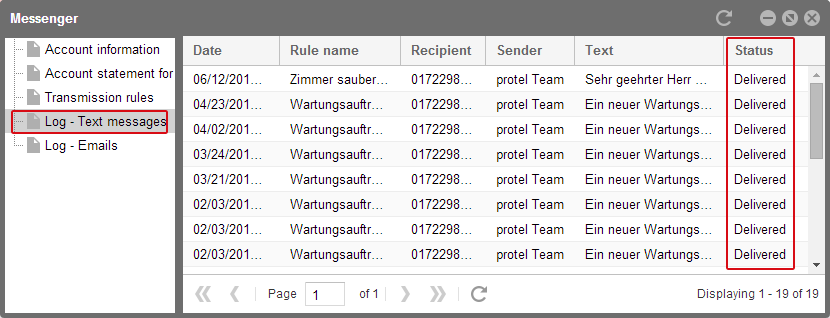
protel Cloud Center > Messenger > Messenger > Log - Text messages
If a text message has been successfully transmitted, you will see Delivered in the status column. In the log, you will also see which rule had been applied and which text had been sent.
The number in the Quantity column informs you about the number of text messages required for sending your message. Based on the number of characters used in the message, e.g., by the insertion of a replacement code, it is possible that two or more text messages will be required for sending. You will be able to understand the calculation based on this quantity.
Should you receive the PreCheckFailed error message as a status, an error will have already occurred before having sent the message. This status message will be displayed, for example, when wanting to send a text message even though you no longer have enough credit on your message account to do so.
 |
Note How to edit the columns and to appropriately display the window contents is explained here. |
Log - Emails
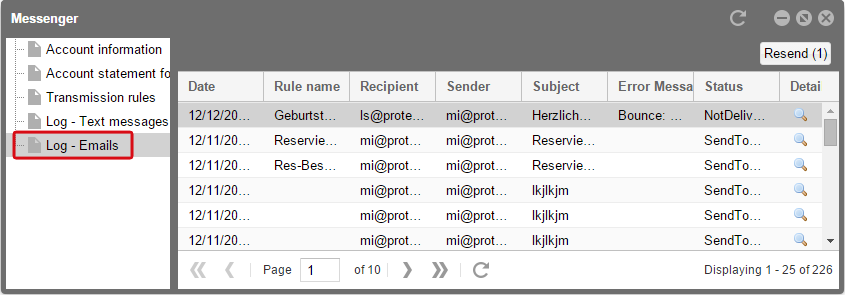
protel Cloud Center > Messenger > Messenger > Log - Emails
The status will be noted as SendToGateway when an email has been successfully transmitted. In the log you can also check to see when, from whom and to whom and with which text to which guest an email had been transmitted. Click on the magnifying glass symbol located in the Details column to take a look at the messages' text.
|
Note How to edit the columns and to appropriately display the window contents is explained here. |
Not only can you show or hide columns, but you can also set filters.
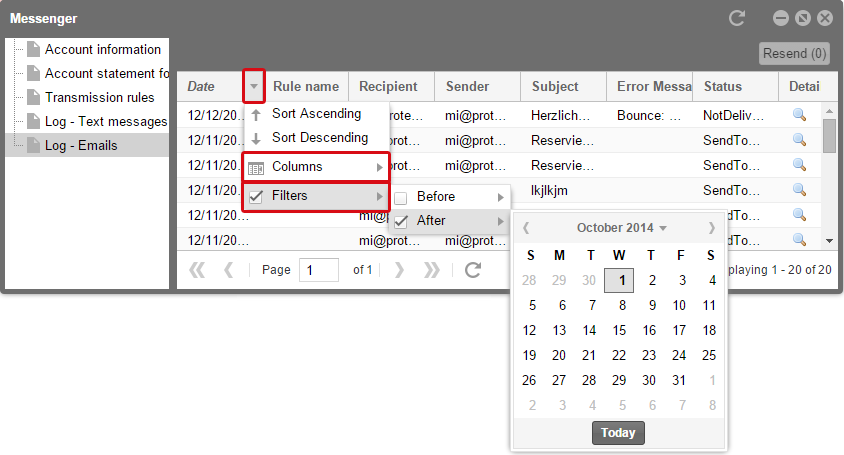
protel Cloud Center > Messenger > Messenger > Log - Emails
You can therefore view the emails that you need. You will have access to the various filters depending on which column's title you have clicked on. Filter based on date, transmission rule, or status.
When you have sent a message via protel Messenger to a guest with an invalid email address, the log displays an error message:

The error message provides you with information about which guest address is invalid and the status shows that the preliminary examination for this address was unsuccessful (state PreCheckFailed). In such cases, correct the email address in the protel guest profile and resend the message if necessary.
There can be different reasons for an unsuccessful transmission. In those cases, please click on the error message in the log to see the whole message in a separate dialog. For example, the dialog can look like this (a 12 MB attachment leads to an unsuccessful transmission):
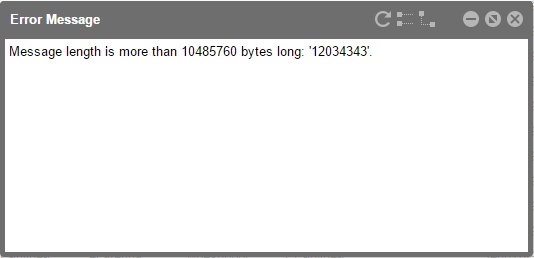
From this dialog you can easily copy the error message and send it to the Support. If you have resolved the error with the information of the error message on your own, you can resend the email afterwards.
Back in the main dialog you will find a button in the upper right to send emails again.
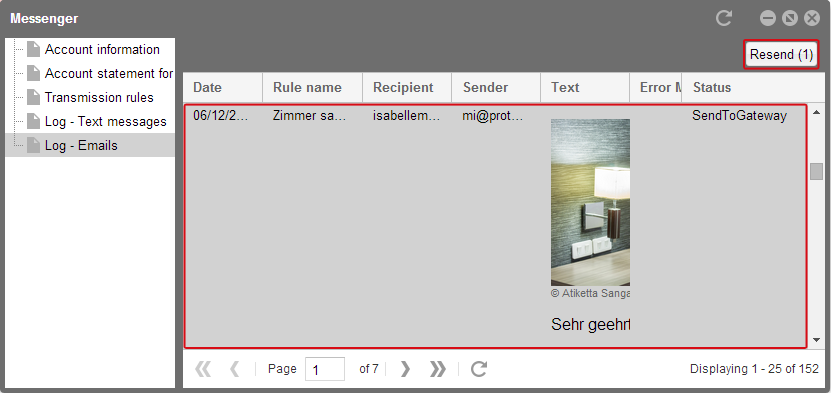
The number in brackets tells you how many emails have been selected for the resend. Therefore, select at least one email from the log before clicking the button. A notification pops up to inform you about whether or not the email has been successfully sent.
This function is convenient to resend emails after an error as well as resending emails because a guest has deleted his reservation confirmation unintentionally, for example.
Messenger log in protel FO
You can also check in the guest profile in protel FO, which Messages were sent to the guest. To do so, open the Messenger tab in the guest profile.
 |
Important! Please note that Internet Explorer 10 is needed to ensure correct functionality of the Messenger tab (for IE 10 Windows 7 or higher is required)! |
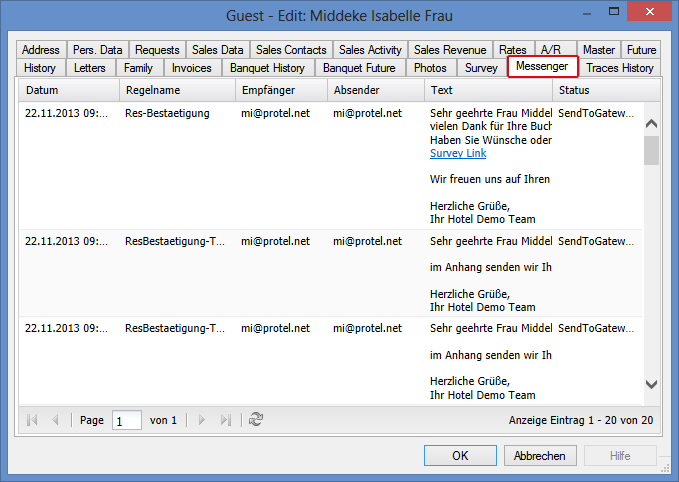
Thus you can either look up the log of protel Messenger per guest or in general.